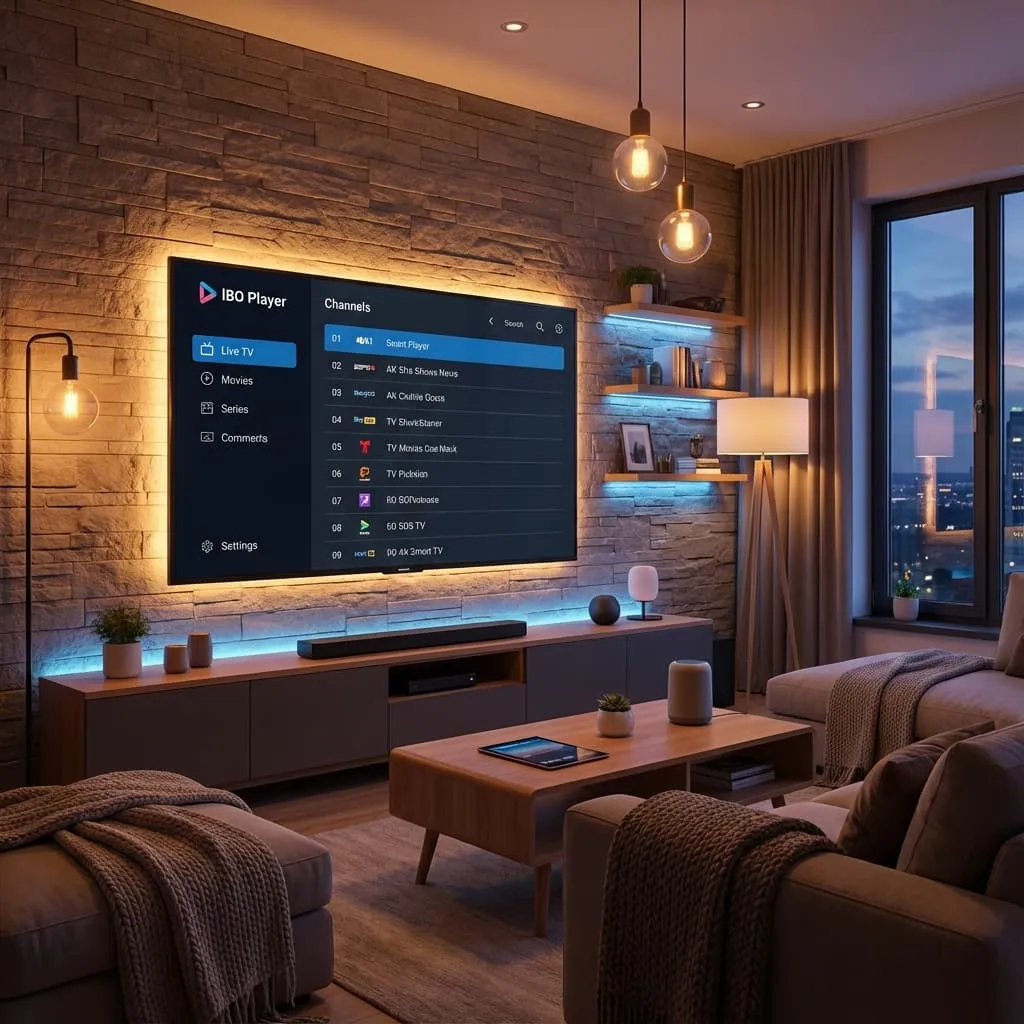
Smart TV IPTV Setup: Complete Step-by-Step Guide
Setup Guides

Smart TV IPTV Setup: Complete Step-by-Step Guide

NoBufferingTV Team
2026-03-08
2 min read

Learn how to set up IPTV on Samsung Tizen, LG webOS, Sony, and Android Smart TVs. Follow our step-by-step tutorial to start streaming in under 3 minutes.

Setting Up IPTV on Your Smart TV


Modern Smart TVs can run IPTV apps directly - no external device needed! Here's how to set up NoBufferingTV on every major TV brand.


Samsung Smart TV (Tizen OS)


Method 1: Smart IPTV App

  • 1. Press the Smart Hub button on your remote
  • 2. Go to Apps > Search
  • 3. Search for "Smart IPTV" or "IPTV Smarters"
  • 4. Install the app
  • 5. Open app and enter your NoBufferingTV credentials

  • Method 2: Web Browser

  • 1. Open the built-in web browser
  • 2. Navigate to your IPTV portal URL
  • 3. Log in with your credentials
  • 4. Bookmark for easy access

  • LG Smart TV (webOS)


    Using the LG Content Store:

  • 1. Press the Home button
  • 2. Navigate to LG Content Store
  • 3. Search for "IPTV Smarters" or "Smart IPTV"
  • 4. Install and configure with your subscription details

  • Pro Tip: LG's Magic Remote makes navigation much easier. Consider upgrading if you have an older remote.


    Sony Smart TV (Android TV / Google TV)


    Easiest Setup:

  • 1. Press the Home button
  • 2. Go to Google Play Store
  • 3. Search for "TiviMate" or "IPTV Smarters"
  • 4. Install your preferred app
  • 5. Enter your NoBufferingTV playlist URL

  • Sony Android TVs offer the most flexibility as they support nearly all IPTV apps available.


    TCL / Hisense (Roku TV or Android)


    For Roku TV Models:

    Roku doesn't support traditional IPTV apps, but you can:

  • 1. Use screen mirroring from your phone
  • 2. Add an external Firestick (recommended)

  • For Android TV Models:

    Follow the Sony Android TV instructions above.


    General Setup Tips


    Before You Start:

  • Ensure TV firmware is updated
  • Connect to 5GHz WiFi for better speeds
  • Have your subscription credentials ready
  • Test your internet speed on the TV

  • Optimal Settings:

  • Enable "Game Mode" or "Low Latency" for live sports
  • Disable motion smoothing for natural picture
  • Set picture mode to "Cinema" or "Movie"

  • Troubleshooting Common Issues


    App won't install:

  • Check available storage (need 500MB+ free)
  • Verify TV model supports the app
  • Try alternative IPTV app

  • Buffering on Smart TV:

  • Smart TVs often have weaker WiFi - consider ethernet
  • Close other apps running in background
  • Reduce stream quality in app settings

  • No sound:

  • Check TV audio output settings
  • Try "PCM" instead of "Auto" for audio
  • Verify the channel itself has audio

  • When to Use External Devices


    Sometimes a dedicated streaming device provides better performance:


    Consider Firestick/Android Box if:

  • Your TV is more than 3 years old
  • Built-in apps frequently crash
  • You want recording capability
  • Interface is slow and laggy

  • Stick with Smart TV apps if:

  • You have a recent high-end TV
  • Performance is smooth
  • You prefer fewer devices

  • The NoBufferingTV Advantage


    Our service is tested and optimized for all major Smart TV platforms. Our support team can provide:


  • Model-specific setup instructions
  • Remote troubleshooting assistance
  • Recommended settings for your exact TV

  • Need help? Email our 24/7 support at info@nobufferingtv.com for personalized setup assistance.


    Free Hardware & Network Toolkit

    Stop IPTV Buffering & ISP Throttling

    Unlock our Anti-Throttle Ultimate Checklist with proven configuration steps for Firestick, Smart TVs, and Android boxes.
    Instant on-screen delivery. We respect your privacy. No spam.

    Share this article:
    Ask a Question

    Ready to Experience Zero Buffering?

    Join 50,000+ satisfied customers enjoying buffer-free streaming.

    View Plans
    Chat with us!